
Free AI Image to Video Tutorial: Prompt-Based Motion Control
Summary: Learn how to turn images into predictable AI videos with proper model selection, motion-oriented prompts, and tips for smooth, stable results.
Many people trying “image to video” for the first time find the results far from their expectations. What seems like a simple one-click generation is actually much harder to control.
Animating an image does not automatically mean the result is beautiful, stable, or smooth. The three key factors are model selection, prompt writing, and motion understanding. Mastering these allows your AI video to be predictable and reproducible. This tutorial will guide you step by step from a user perspective, showing how to turn static images into smooth AI videos with AniFun.
Why Your AI Image to Video Results Differ and How to Fix Them
The main reasons for different AI video results are two variables: the model and the prompt. Understanding how they affect the output is key to moving from unpredictable results to reproducible ones.
The Model You Choose Matters
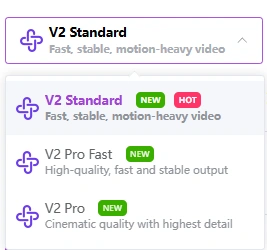
| Model | Key Feature | Recommended Scene |
|---|---|---|
| V2 Standard | Motion-focused, stable, Fast, moderate detail | Fast-paced action, motion-heavy sequences |
|
V2 Pro Fast |
Balanced high-quality output, fast, high quality | General animation, previews, short clips |
| V2 Pro | Cinematic, maximum detail, moderate speed, highest quality | Final production, complex scenes, cinematic shots |
The Prompt You Write Determines
● Character/ Subject🎅
Locks “who is moving,” preventing character distortion or identity drift.
a young anime girl with long flowing hair, bright eyes, soft anime style, waist-up view
| Type | Example Phrases |
|---|---|
| Basic | a young anime girl, upper-body shot |
| Close-up | close-up of a male anime character, clean face |
| Half-body | waist-up view of a female anime character, soft anime style |
| Pose | standing young boy, confident pose |
| OC / Anime-Style | original anime character, bright eyes, long hair, delicate features |
| Optional Add-ons | wearing casual modern clothes, holding a book |
● Action/ Motion🤸
Determines “what moves,” “how it moves,” and “how much it moves”
slowly turning her head to the side while blinking gently, subtle smile formin
| Action Type | Example Phrases |
|---|---|
| Subtle | slowly blinking, gentle breathing |
| Emotional micro-movements | slight smile forming, subtle frown |
| Medium | slowly turning her head, tilting shoulders |
| Expressive / Emotional | reaching out hand slowly, shrugging lightly |
| High action (use with caution) | jumping lightly, hair flowing in wind |
| Sequential action | blinking twice, then looking to the side |
● Environment/ Atmosphere🏜️
Stabilizes background and sets mood
quiet park background at sunset, soft warm light, calm and peaceful atmosphere
| Type | Example Phrases |
|---|---|
| Simple indoor | simple indoor background, soft lighting |
| Outdoor natural | sunny park background, gentle breeze |
| City atmosphere | quiet street at evening, warm streetlights |
| Mood / Color | calm atmosphere, warm tones |
| Dramatic / cinematic | dramatic sunset, soft shadows, cinematic mood |
| Anime-specific | pastel-colored background, soft-focus anime style |
● Camera/ Cinematic Language📸
Tells the model how to view the character. This dimension is crucial for giving the video a “cinematic” or “animated” feel. Can be combined in multiple ways.
medium close-up, static camera with smooth pan, cinematic anime style, subtle depth of field
| Type | Example Phrases |
|---|---|
| Camera distance | close-up, medium shot, long shot, extreme close-up |
| Camera movement | static camera, smooth pan, slow zoom in, gentle tilt |
| Cinematic style | cinematic anime style, soft focus, dynamic composition |
| Perspective / Angle | over-the-shoulder view, top-down view, side profile shot |
| Visual effect | subtle depth of field, slightly blurred background, wide framing |
| Action tracking | camera follows head movement, tracking shot of hand |
| Advanced combos | medium shot, smooth dolly-in, cinematic lighting, subtle motion blur |
Mistakes That Make Your AI Video Unstable
Avoid these common mistakes to significantly improve video quality:
❌ Overloading motion descriptions causing frame instability
❌ Using a static image prompt directly for video generation
❌ Applying the same model to all images, ignoring scene differences
❌ Ignoring camera language, only writing “character is doing something”
How to Animate Anime Characters with AniFun AI Image to Video
AniFun makes it surprisingly easy to turn static images into video using free image to video AI, but achieving smooth results still requires following the right workflow.
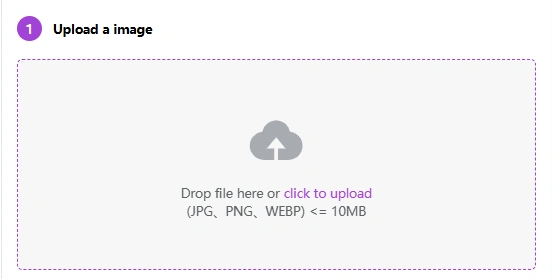
☝️Upload a Clean Image
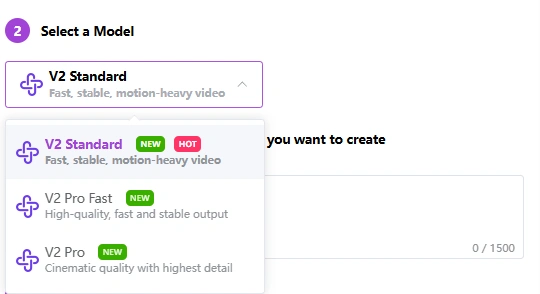
✌️Choose the Right Model for Your Goal
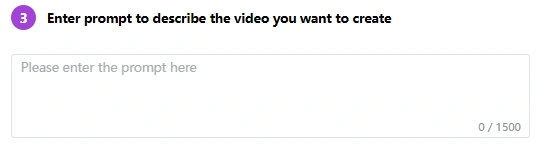
✍️Write a Video-Oriented Prompt
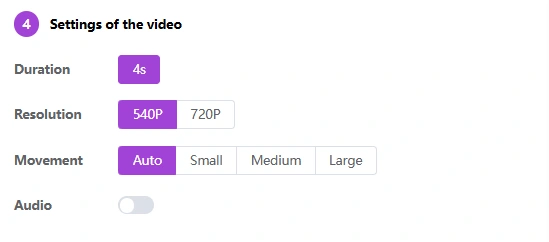
🤟Adjust Settings for Smoothness
How Do I Make the Most of My Model and Prompt Choices?
🔈Basic: Light Motion + High Stability
Character
● Female character remains seated in the bath with a stable pose.
● One hand rests firmly on the edge of the wooden tub, supporting her body.
● The other hand holds a cup steadily, maintaining the same grip and position.
Action
● She gently turns her upper body and head toward the viewer.
● Facial expression changes: eyes soften and brighten, giving a gentle, relaxed smile.
Environment
● Water forms soft ripples and small waves around her.
Camera
● Fixed camera, frontal view focusing on upper body and facial expression.
Style / Additional Notes
● Anime-style animation, controlled character motion, stable hands and arms, natural body movement, clear emotional change, no limb distortion, no flickering.
🔉Intermediate: Minor Motion + Emotional Changes
Character
● Male character visibly pulls the sword further out of the sheath.
● Arm tenses, grip tightens, posture shifts slightly forward.
Action
● Sword draws forward, continuous motion, clearly noticeable.
● Facial expression evolves dynamically with action.
Environment
● Surrounding water reacts to movement: streams flow, swirl, and surge around him.
● Water forms circular paths, curved trajectories, spiraling around body and sword.
Camera
● Fixed or slight dynamic angle emphasizing the sword draw and water motion.
Style / Additional Notes
● Anime-style animation, strong motion emphasis, flowing water effects, smooth natural movement, consistent character design, no deformation, no flickering.
🔊Advanced: Large Motion + Camera Movement
Character
● Female character performs a refined dance with gentle turns of upper body.
● Soft arm extensions and light, flowing movements that match the rhythm.
● Dress and hair move naturally with each motion.
Action
● Controlled, elegant, continuous dance movements.
● Limbs remain stable, anatomy natural, focus on graceful motion.
Environment
● Neutral or simple background (focus on character and movement).
Camera
● Smooth 360-degree continuous circular rotation around the character.
Style / Additional Notes
● Smooth anime-style animation, elegant dance, stable character proportions, flowing motion, no deformation.
Conclusion
Creating high-quality AI videos is not just “one-click generation.” It’s a process of understanding model logic, writing motion-oriented prompts, and avoiding common mistakes. Tools like AniFun AI image to video lower the barrier by offering a free, easy-to-use workflow—but the quality of the result still depends on how well the process is understood and applied.
By mastering these methods, you can generate smooth, reproducible AI videos for anime character close-ups, environmental dynamics, or short narrative clips. Now it’s time to try your first prompt and bring static images to life!
Q1: Can I convert a JPG image to MP4?
Yes. You can easily convert JPG, PNG, and WebP files into MP4 videos using Anifun’s image to video converter. Simply upload your image, and the system automatically generates an MP4 animation.
Q2: Is my content private and secure?
Yes. All images and videos you upload are processed securely and are never used for training or shared with third parties. Your files are only used once to generate the image to video AI output and are not stored or exposed publicly.
Q3: Can I use Anifun's Image to Video feature for commercial projects?
Yes. Videos generated with our AI image to video generator free platform can be used commercially, provided the original image does not violate third-party rights. Always ensure you own or are licensed to use the content you upload.
Q4: I didn’t capture the motion I’m looking for. What should I do?
Try refining your prompt with specific motion actions, such as “slow zoom-in,” “wind blowing through hair,” or “dynamic forward movement.” Adjust the motion strength and regenerate. Clearer instructions help the img to video engine produce the effect you want.